To-dos: basics
A to-do is a task with a responsible person and a date. OpenOlat provides to-dos in several modules, everywhere with the same fields and the same status model. This page describes what applies to all to-dos. How you work with them in a module is described on that module's page.
Where are to-dos available?
Tasks are recorded where they arise. In the personal menu they come together.
| Place | What is recorded there |
|---|---|
| Personal menu | All your to-dos from all modules in one list, plus your own to-dos without a module reference |
| Project | Tasks within a project, linkable with files, dates and decisions |
| Course | Tasks concerning the course, created under Course > Administration > To-dos |
| Course element Task | To-dos that the course element assigns automatically. They serve as information and cannot be edited or deleted |
| Course Planner | Tasks on every element of a product, plus a central overview across all products |
| Quality management | Actions that result from a data collection |
The fields of a to-do
Whoever creates a to-do finds the same fields in every module. Two entries exist in one module only.
| Field | Meaning | Available |
|---|---|---|
| Title | Names the task. Choose a self-explanatory title | everywhere, mandatory field |
| Assigned | The person responsible for completing the task | everywhere, mandatory field except in the Course Planner; for personal to-dos only if the administration allows assignment to other persons |
| Delegated | Execution can be delegated to other persons, also to changing persons over time. Responsibility remains with the assigned person | everywhere; for personal to-dos only if the administration allows delegation to other persons |
| Status | The processing state of the task | everywhere |
| Priority | Urgent, High, Medium or Low | everywhere |
| Start date | When the task starts. If a due date is also set, the detail area shows a progress bar | everywhere |
| Due date | The date by which the task should be completed | everywhere |
| Expenditure of work | The estimated effort in weeks (w), days (d) and hours (h), input format 3w 1d 6h. By default, one day counts as 8 hours and one week as 5 days. OpenOlat converts the entry accordingly: 10h appears as 1d 2h |
everywhere |
| Tags | Freely assignable keywords | everywhere |
| Description | Additional information about the task | everywhere |
| Context | Module and object the to-do originates from. In the list as the columns "Context type" and "Context" | everywhere |
| Metadata | "Created" and "Last modified" (in the project: "Modified"), each with date and person. The collapsible section appears in the dialog once the to-do exists. In the project and in quality management it additionally lists all changes | everywhere |
| Links | Links the to-do with files, dates and decisions | project only |
| Relative dates | Start date and due date based on the implementation period instead of a fixed calendar date | Course Planner only |
Tags you have created once are available for selection in other to-dos as well. They are not a hierarchically structured classification like the taxonomy that OpenOlat offers elsewhere.
How many hours make a day and how many days make a week for the expenditure of work is part of the server configuration. frentix customers contact the frentix support for a change: support@frentix.com
Status and quick actions
The status shows everyone involved how far a task has progressed. With the quick actions you change it directly in the list.
| Status | Meaning |
|---|---|
| Open | The task has been created but not yet started |
| In progress | Work on the task has begun |
| Done | The task is completed |
| Deleted | The to-do is removed and only visible via the "Deleted" filter |
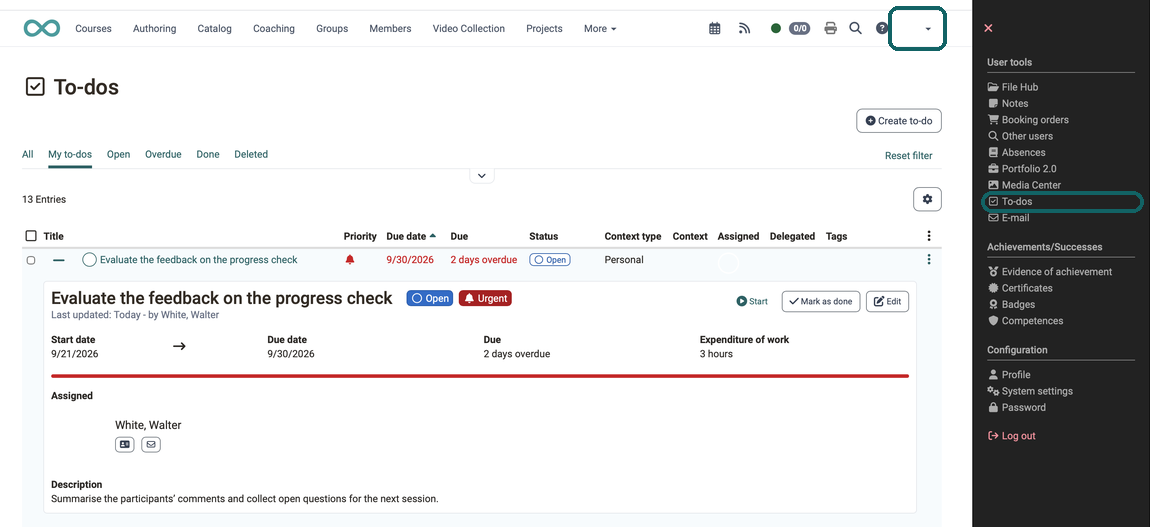
In the list, the status appears as a coloured circle next to the title. Use the plus sign at the start of a row to expand the detail area. There you change the status without opening the dialog:
- "Start" sets the status to "In progress". The action only appears with the status "Open".
- "Mark as done" completes the task. The action appears with the statuses "Open" and "In progress".
- "Edit" opens the dialog with all fields.
If start date and due date are both set, the expanded detail area additionally shows a progress bar. It indicates how much of the time between the two dates has passed. Once the due date is exceeded, the bar is completely filled and red.
The image at the top of the page shows the status circles and the expanded detail area with the quick actions.
Who may edit a to-do
Editing permissions are held by the person who created the to-do, by the assigned and by the delegated person. Which roles may edit in addition is determined by the module: in the project the project management. In the Course Planner, administrators, course planners, product owners and element owners edit the to-dos; assigned and delegated persons only change the status there.
You delete to-dos where they were created. In the personal to-do list you delete your personal to-dos and the to-dos for which the module allows the assigned person to delete them.
When OpenOlat sends e-mails about to-dos
Whoever is to take on a to-do learns about it by e-mail and does not have to check the to-do list first. OpenOlat sends e-mails about to-dos in two cases:
- The e-mail "New to-do" goes to whoever is newly entered under "Assigned" or "Delegated" for a to-do. It names the title of the to-do and contains a link to it. If a person changes from "Assigned" to "Delegated" or vice versa, no e-mail is sent.
- The e-mail "To-do done" goes to the person who created the to-do and to the assigned and the delegated persons as soon as the to-do receives the status "Done". Whoever completes the to-do does not receive one. To-dos from the course element "Task" do not trigger this e-mail.
In the Course Planner, in the project, in quality management and for personal to-dos, whoever enters themselves receives no e-mail. E-mails about to-dos only go to persons with an active account.
In the Course Planner, OpenOlat combines the assignments of one operation. If a copy with "Copy element" or the bulk action "Create to-dos" assigns several to-dos to the same person, that person receives a single e-mail "New to-dos". It states the number of to-dos and lists one line with title and link per to-do. With more than 20 to-dos it shows the first 20 and below them the line "… and N more", where N stands for the number of remaining to-dos. If a person receives only one to-do from the operation, the e-mail "New to-do" is sent. OpenOlat sends the e-mails only once the operation is completed.
There is no setting that switches off e-mails about to-dos. When copying an implementation, no e-mails are sent if you choose the option "To-dos only" or "Don't copy" under "To-dos": Adopt to-dos when copying
Further information
Mentioned on this page
User tools: To-dos >
Projects: To-dos >
To-dos in the course >
Course Element "Task" >
Course Planner: To-dos >
Quality Management: Actions (To-dos) >
Course Planner: Implementations >
Further reading
Module To-do (Admin) >
Personal menu >