Coaching - Overview
Profile
| Name | Coaching Tool |
|---|---|
| Available since | Release 10.0 (2014) |
What is the Coaching Tool for?
The Coaching Tool is used for the cross-course organization and administration of courses, participants and groups, as well as the correction of assessment modules, the absence management and the external corrector flow of OpenOlat tests.
With the Coaching Tool, course owners, course coaches, group coaches, education managers and other authorised persons have the possibility to see and manage all course or group participants assigned to them at a glance. They can then quickly go from these overviews to the assessment tool for individual participants in different ways.
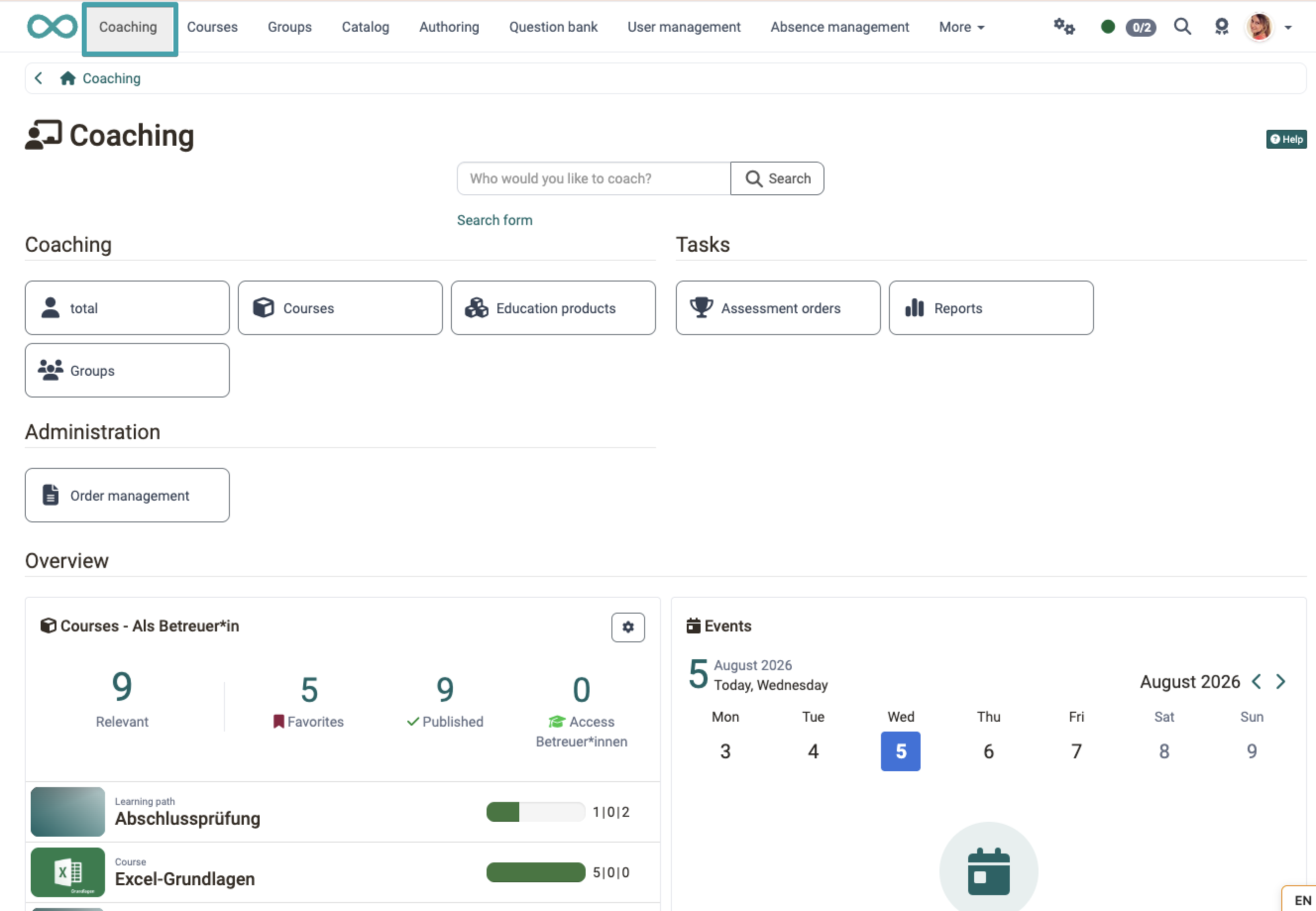
The tools
You can find access to the data of the persons you coach and the tools under the buttons
- People
- Courses
- Groups
- Events / Absences
- Assessment orders
- Reports
- Order management
Note
Your menu will often not contain all the options shown here. Depending on the activated modules and roles, a different composition is displayed. Here in the manual, the maximum selection is shown for explanation.
When is the Coaching Tool available?
The Coaching Tool is an integral part of OpenOlat and cannot be deactivated.
Whether the "Coaching" menu option is displayed in the main menu for you depends on the following factors:
- System role: Guests and external parties cannot provide coaching.
- The course role must be coach or owner. Participants cannot provide coaching.
- The course status must be "Published", "Access for coach" or "Finished".
- Whether there are participants (at least 1 person) in a course or group.
Who typically uses the Coaching Tool?
The Coaching Tool is used by
- Coaches who supervise participants in multiple courses
- Education managers
- Line managers
- Individuals with defined person-to-person relations, e.g. mentor - mentee
Additionally, administrative roles have access.
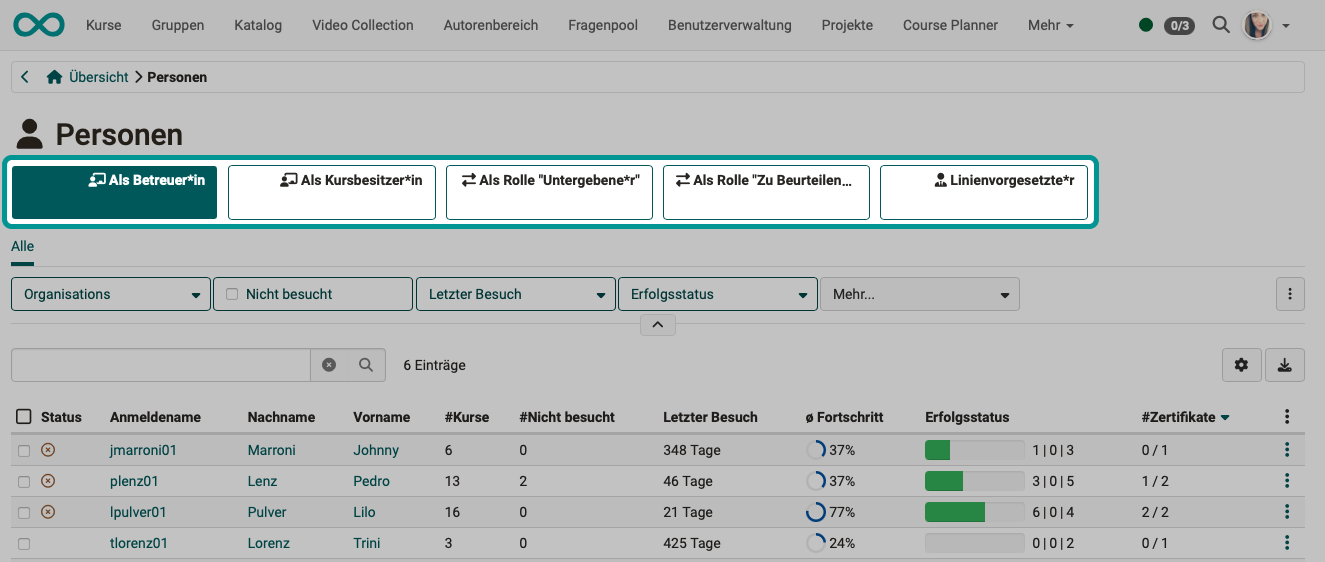
The focus elements
The Coaching Tool often displays a list of the people you are coaching. If, for example, you are only a direct coach in one course but also an education manager, you can access all other participants based on this role.
You can select one of your roles using the focus elements above the list. This will give you a preselection. The list will then only contain people you are responsible for in this role.
Widgets
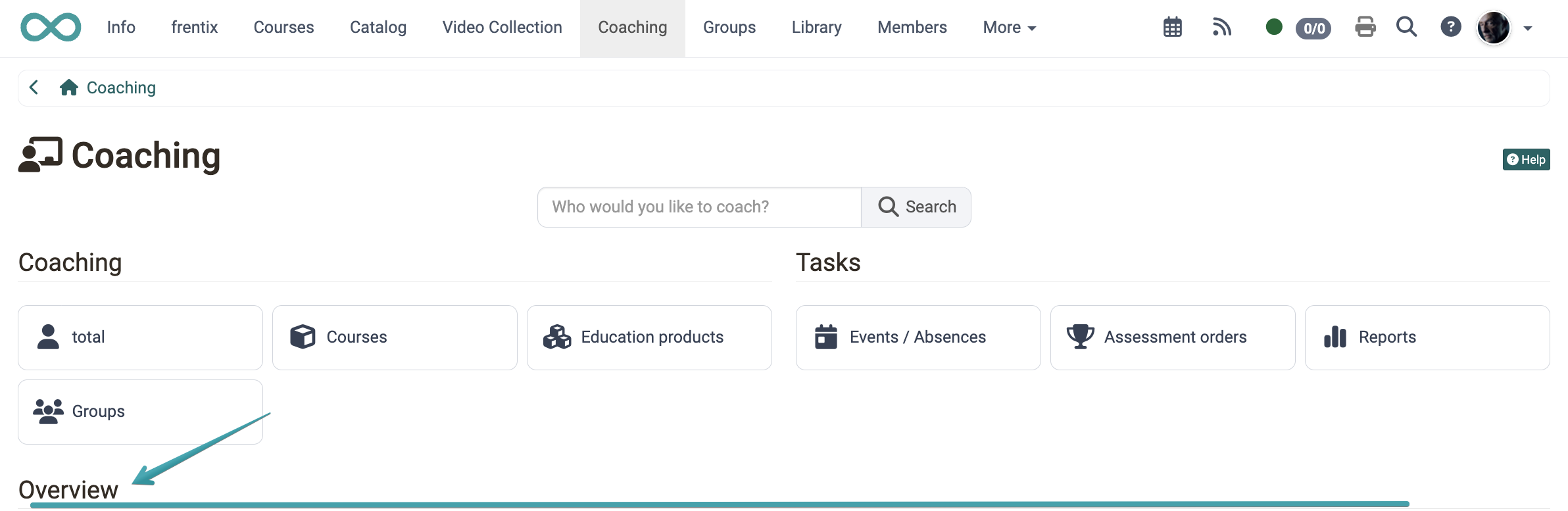
Overview
A separator area labelled "Overview" visually separates the widget area described below from the buttons/launchers above it.
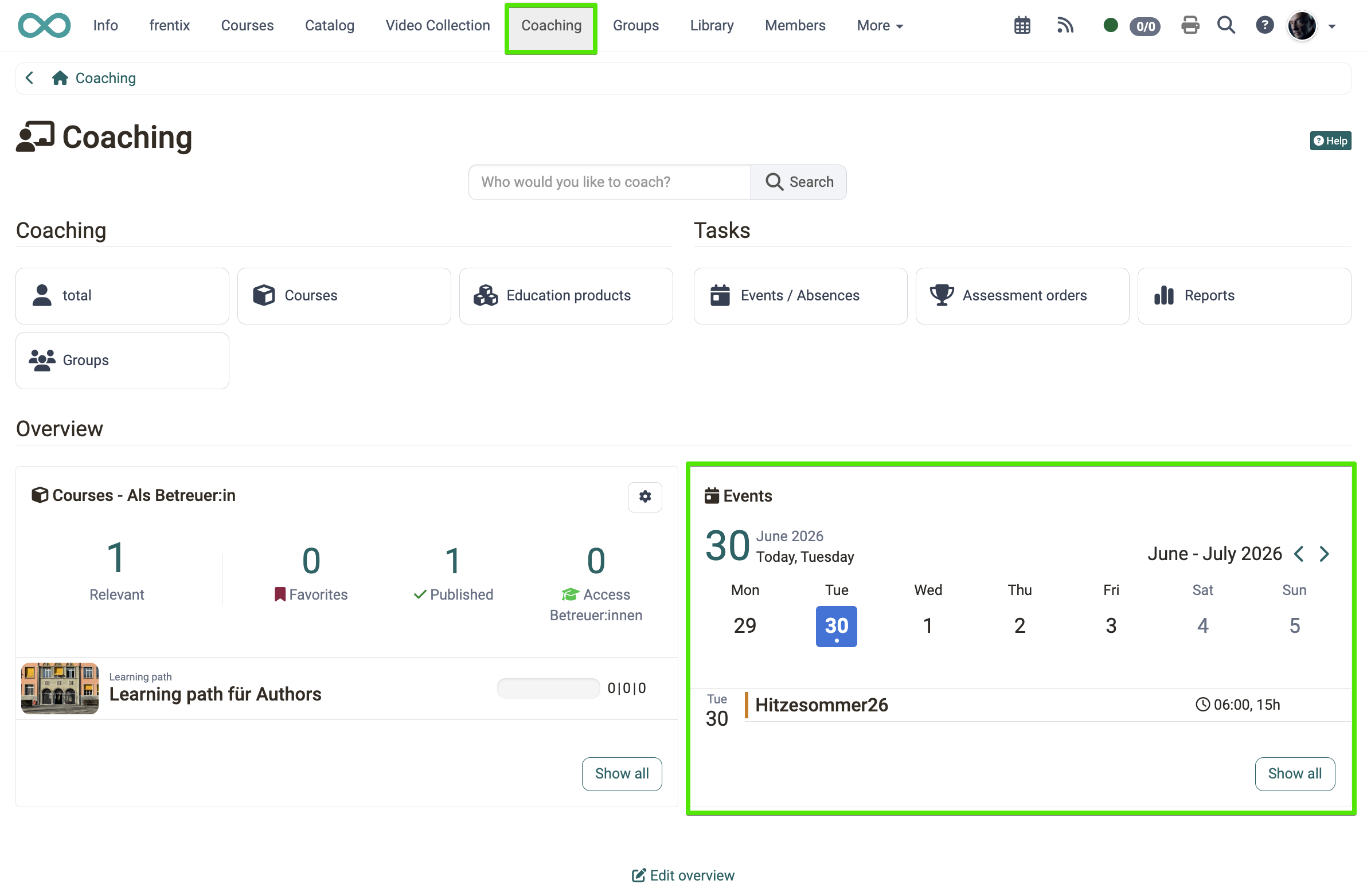
The Event widget
The Event widget appears as a tile on the Coaching overview and shows the upcoming events from today until the end of the current week at a glance.
Displayed are only events in which you are entered as a lecturer yourself, and only from courses with their own event configuration. Events from educational products do not appear here.
Important
The widget with the same name Events in the Course Planner shows different events: there you see events from educational products for which you are administrator, absence manager, owner or coach. See Course Planner: Dashboard.
The widget only appears if the module Events and absences is active system-wide.
Header and day display
The widget header shows the current date with month, year and the label Today, \<weekday>. Today's date is highlighted. The weekend is visually toned down.
Week navigation
Use the < and > buttons to navigate through the events week by week. A week always runs from Monday to Sunday. Initially, the current week from today onwards is displayed.
A dot below the day figure marks the days on which events take place. The day column stays in place while you scroll, even if the week holds many events.
Event list
Each event shows the following information:
- Weekday and date
- Status indicator
- Reference and title
- Location (with location icon)
- Time and duration (with clock icon)
Note
In the narrow (mobile) view, the location column is omitted. Only the time is shown.
Empty state
If there are no events in the displayed week, the message No events until the end of the week appears. Use the Previous event and Next event buttons to jump to the nearest event in the past or future.
Important
The widget is absent entirely if you are not entered as a lecturer on a single event and are not a master coach. If the displayed week holds no event, the empty state appears instead.
Full view
Use the Show all button to go to the Events / Absences tool.
Note
The widget is a quick overview of the current week. The full Events / Absences tool additionally offers the tabs Cockpit, Absences, Notices, Appeals and User search.
The Course widget
The Courses - As coach widget shows the courses you coach.
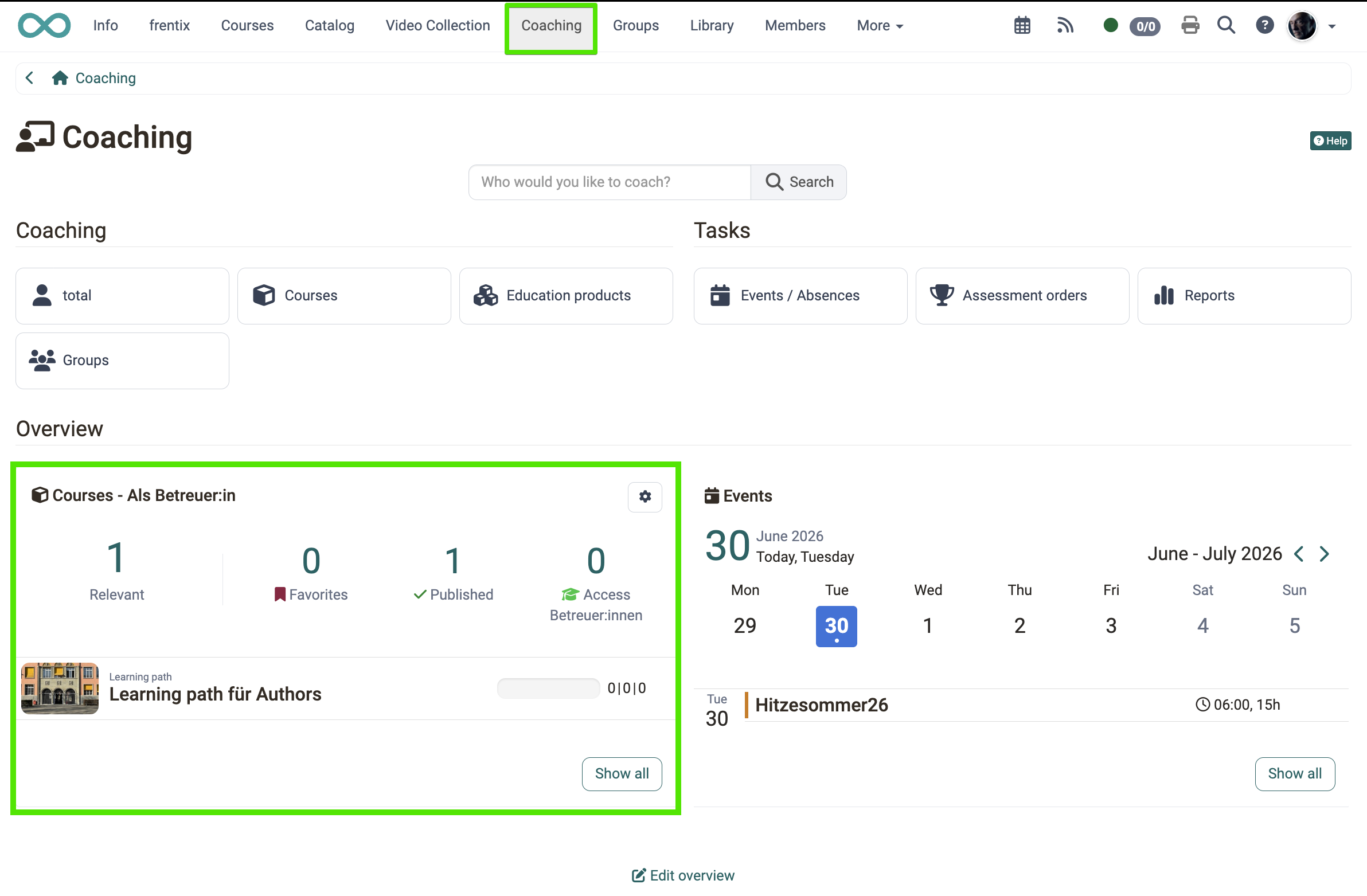
Use the defined filter "Relevant" (selected by default) or one of the other filter variants to get a corresponding preselection :
- Favourites (selected by default)
- All (not selected by default)
- Relevant (selected by default, main key figure)
- Published (selected by default)
- Access for coach (selected by default)
- Finished (not selected by default)
Use the Show all button to go to the full course list in the Courses tool.
Edit overview
Below the widgets, the button "Edit overview" takes you to the edit mode. Use it to rearrange the tiles, to hide them and to bring them back. The operation is the same on all overview pages and is described there once: Overview pages and widgets >
Further information
Coaching: User search >
Coaching: People >
Coaching: Courses >
Coaching: Educational products >
Coaching: Events / Absences >
Coaching: Assessment orders >
Coaching: Reports >
Coaching: Groups >
Coaching: Order management >
Course Planner: Dashboard >
Overview pages and widgets >