Catalog 2.0 - Management
Short description of catalog management
Catalog management of Catalog 2.0 is not a responsibility assigned to a specific role. Rather, it is a function for editing the taxonomies used in the catalog. Users who hold this right (the "Manage" competence) can edit these taxonomies and parts of them without being an administrator.
Where can I access the catalog management?
Access to catalog management is via a link in the catalog. In the catalog, authorized users will also find the following links in the top-right corner, below the header:
- Catalog management
- Jump to administration
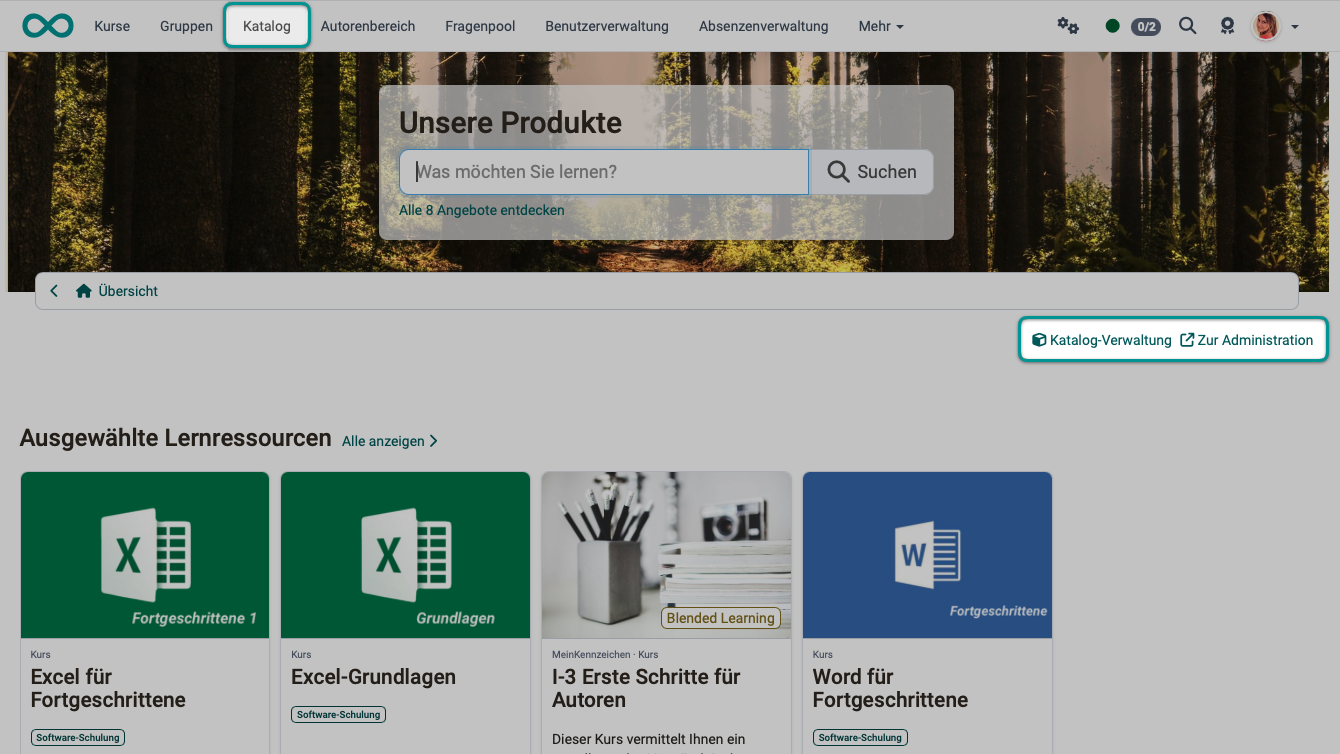
Who sees the access links in the catalog?
The "Catalog management" link is available to
- Learning resource managers
- Administrators
- System administrators
- Users who hold the "Manage" competence on a taxonomy level
Whether learning resource managers get the link is set by system administrators in the system administration: Administration > Modules > Catalog > Tab "Settings", field "Taxonomy editable by".
The "Jump to administration" link is available to
- System administrators
How do you obtain the right (the competence) for catalog management?
The "Manage" competence (the right to edit the taxonomies used in the catalog) can be granted in two ways:
Option 1:
By system administrators in the system administration:
Administration > Modules > Taxonomy > "Taxonomy title" > "Taxonomy level" > Tab "Management" > Button "Add manager"
The taxonomy must be enabled for the catalog. Open it with "view / edit".
Option 2:
By user managers:
User management > "Person" > Tab "Competences" > Button Add "Manage"
Once the competence has been granted, the "Catalog management" link appears for that person in the top-right corner, below the catalog header.
Important
Catalog management is not limited to a specific organizational unit, although the role of learning resource manager may be restricted to a specific organizational unit. (Taxonomies are also not limited to organizational units.)
Is it possible to edit learning resources in catalog management?
The content of learning resources in the catalog is edited in the authoring area. You therefore edit courses in the authoring area. They are also deleted there, for example when they have ended.
Tab Levels
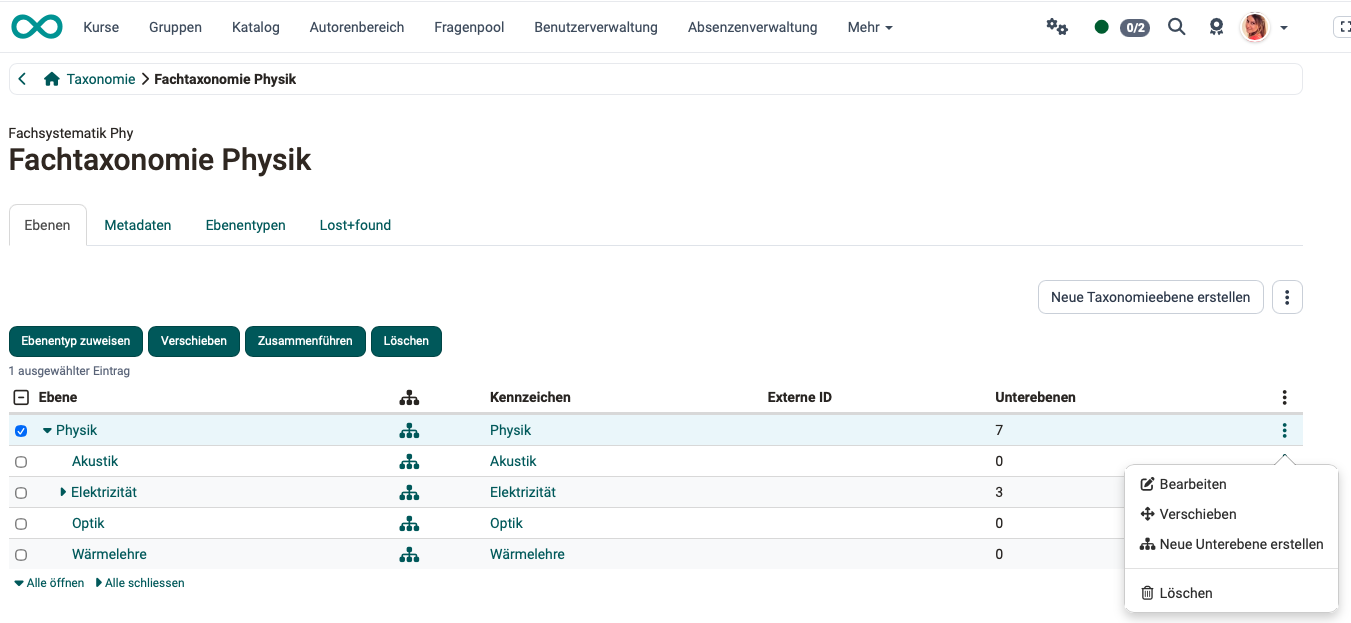
The editing options for the subjects (taxonomy levels) include:
- Edit
- Move
- Merge
- Assign level type
- Deleting elements of the taxonomy level / subtaxonomies
- Creating new sub-levels
Under the three dots to the right of the "Create new taxonomy level" button, you also find options to import taxonomy levels or export them all. The export can be downloaded as a ZIP archive, which contains an Excel spreadsheet with the hierarchical structure of the taxonomy levels.
Important
The design of launchers, sections, etc., is reserved for system administrators.
Tab Metadata
The "Metadata" tab holds the data of the taxonomy itself, not of its levels. You open the metadata of an individual taxonomy level through its row in the "Levels" tab.
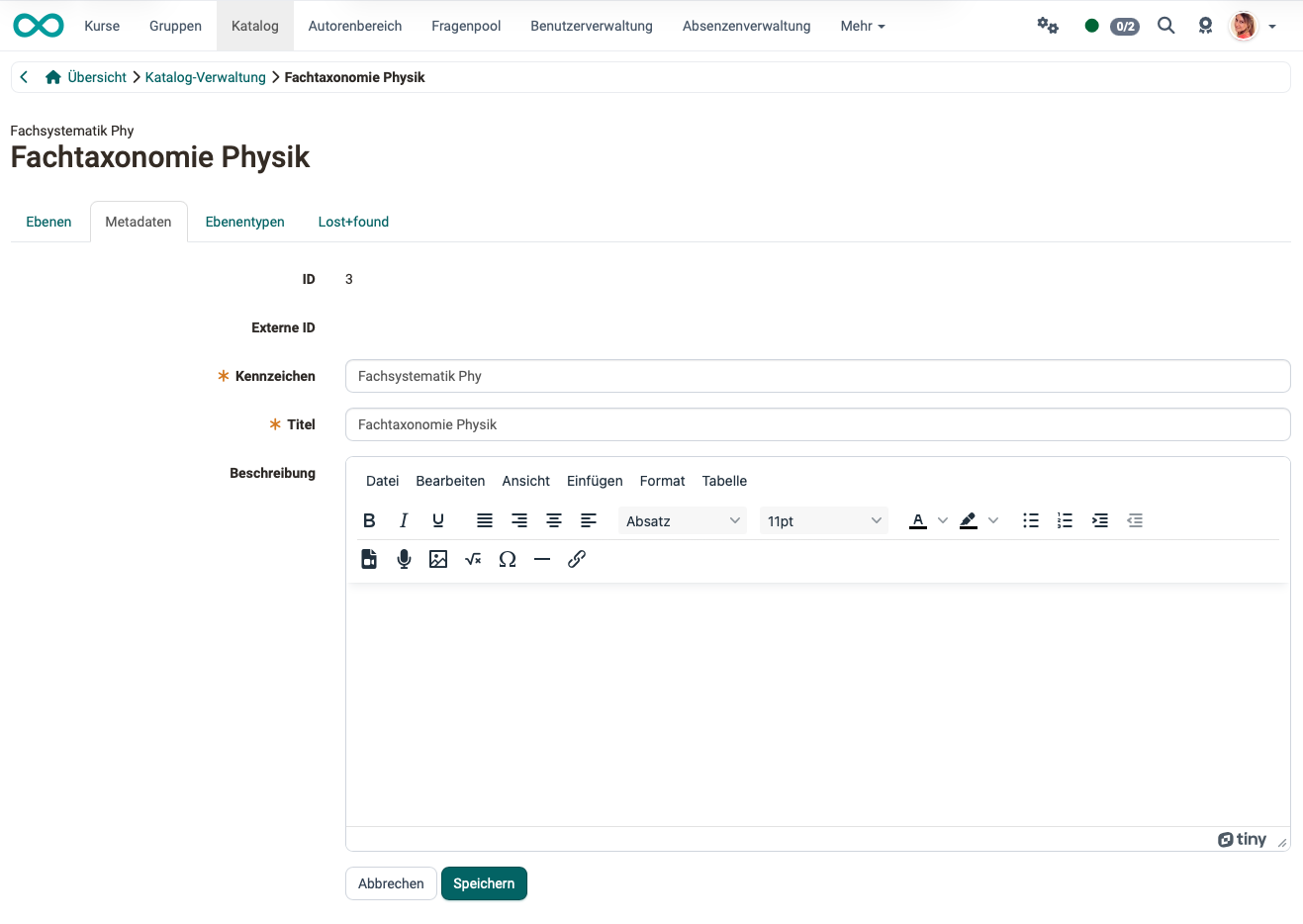
ID: The ID is generated automatically and allows the object to be uniquely identified.
External ID: If an external management system created the taxonomy, the external ID is generated in addition to the automatically generated ID.
Reference: (Required field) Select a unique and logical reference for the taxonomy. This reference appears in the header above the title and is more practical for many purposes than the full title (which may be more understandable and colloquial).
Title: (Required field) The title is used in various places (Catalog 2.0, Document Pool, e-Portfolio, Question Pool). It should provide a brief and accurate description of the taxonomy.
Description: Entering a more detailed description of the taxonomy is optional.
Tab Level types
Use the "Add new level type" button to add another level type. The following fields are available in the edit dialog.
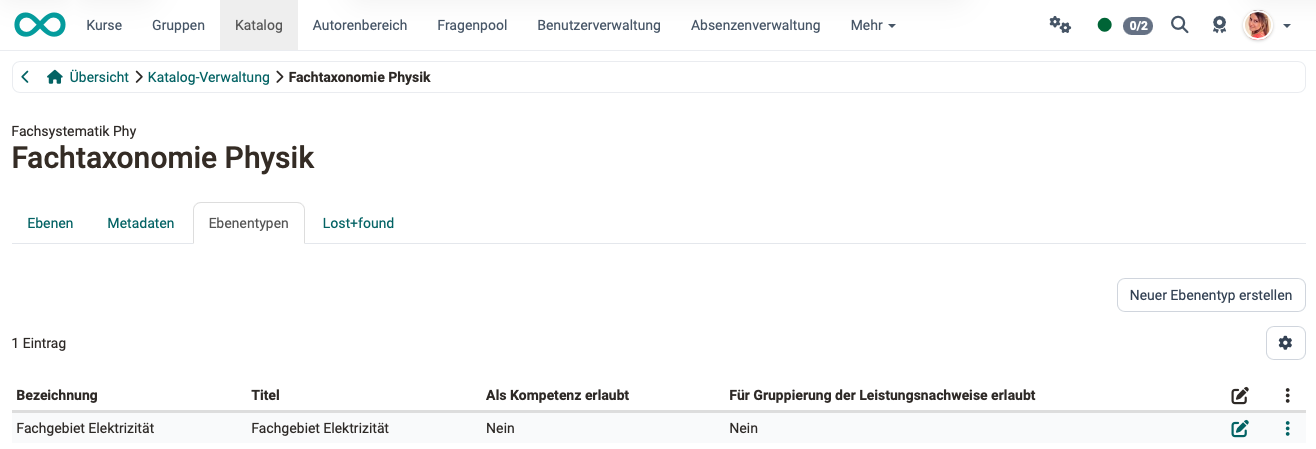
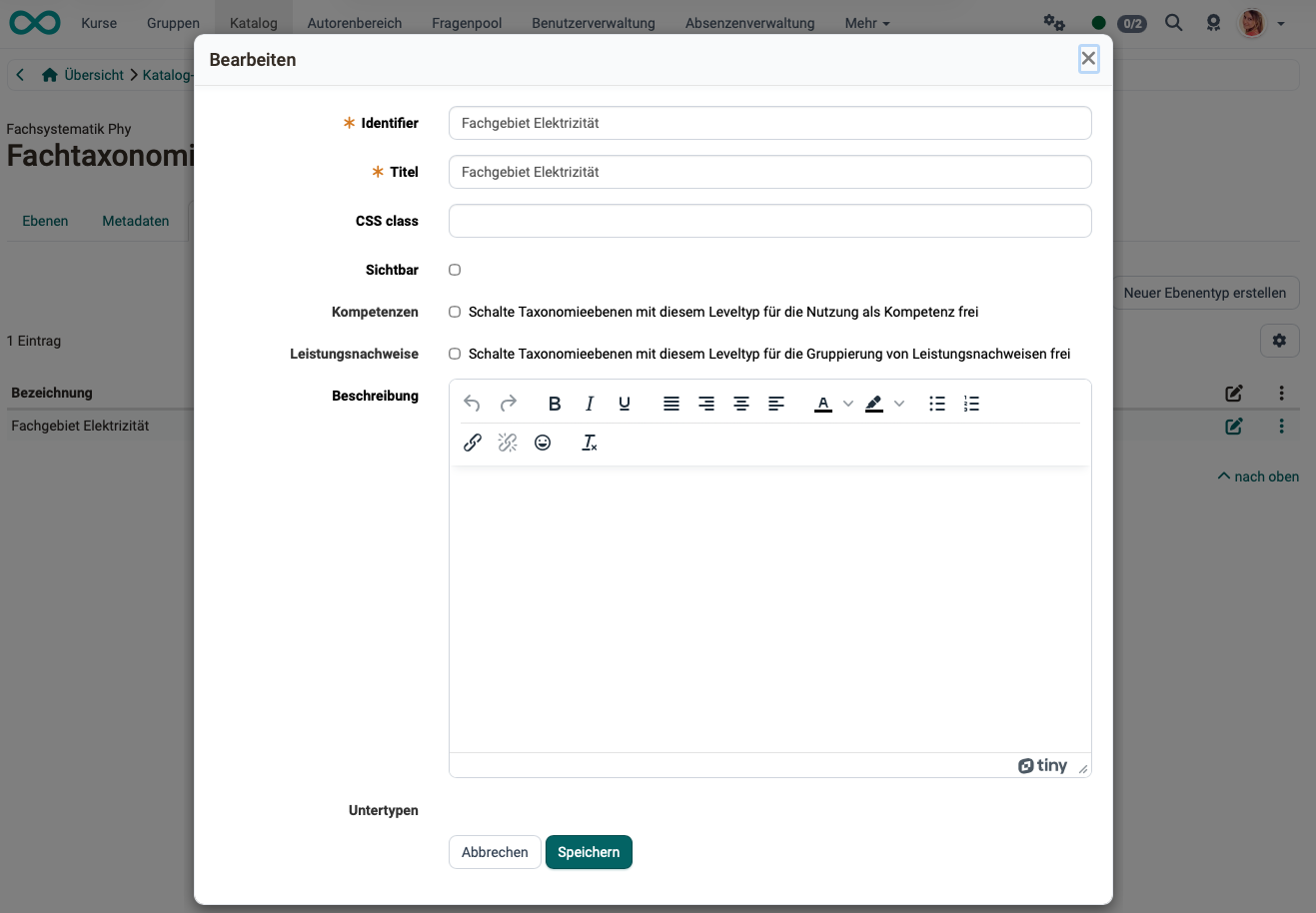
Reference: In addition to the title, a reference must be provided.
Title: Enter an appropriate title to describe the level type.
CSS class: If a corresponding CSS class is defined in the theme, it can be selected here.
Visible: This setting determines whether all taxonomy levels of this type should be visible.
Competences: Users can be assigned competences in user management. Selecting this option enables taxonomy levels with this level type to be used as competences.
Evidence of achievement: Selecting this option enables taxonomy levels with this level type for grouping evidence of achievements.
Description: A more detailed description of the level type is optional.
Sub types: You can select a subtype from the existing level types. This allows you to create a hierarchical structure, which will then be visible when you create the taxonomy levels.
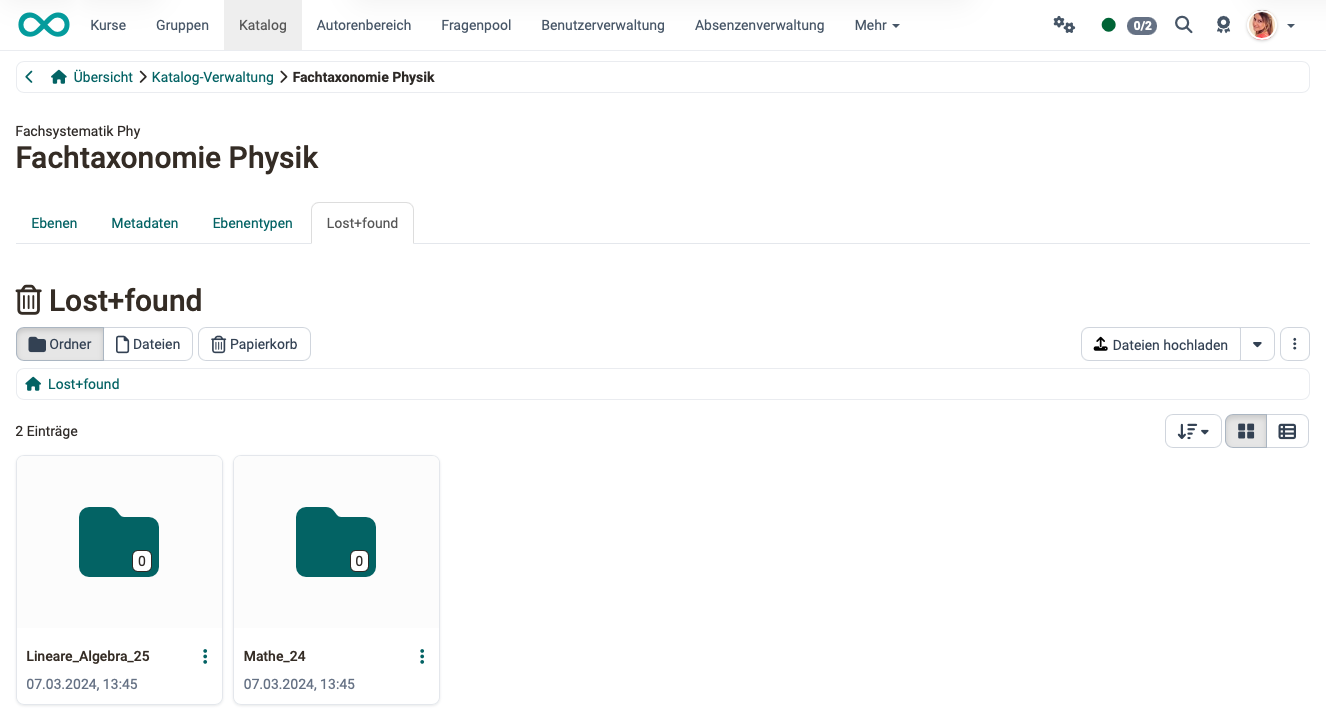
Tab Lost+found
This is where the documents of deleted taxonomy levels are stored. If you delete a level without merging it, OpenOlat copies its documents into a subfolder. The folder name consists of the reference and the ID of the deleted level. If you merge the level with another level instead, the documents move to the target level.
Further information
Authoring >
Taxonomy (admin manual) >
How do I show my courses in the OpenOlat catalog? >
Create offer >
Catalog design >
The web catalog >
Set up catalog (admin manual) >