Portfolio assignment: Grading
If learners have edited a portfolio task and published at least parts of it, the binders or the published parts are available for other persons for commenting and (if settings allows it) grading. In the following the process is described:
Comment a portfolio task
The creator of the binder or entry determines whether it is possible to comment on and rate a portfolio. Only when the binder or entry has been approved can others access it.
1. Open portfolio
Open the personal menu and then your portfolio.

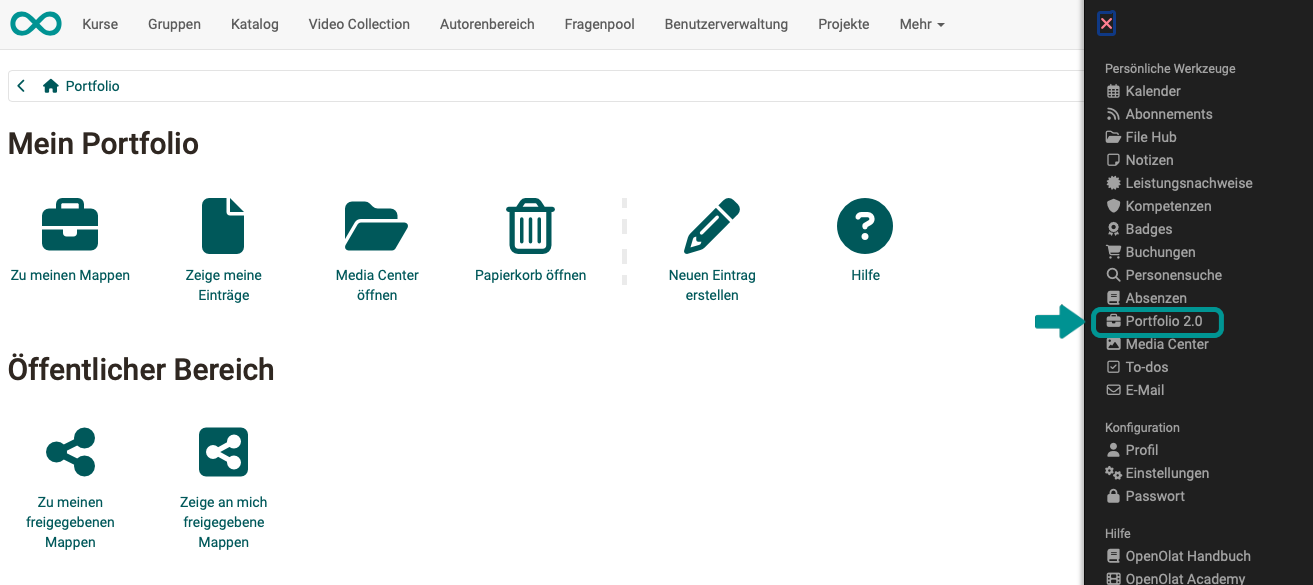
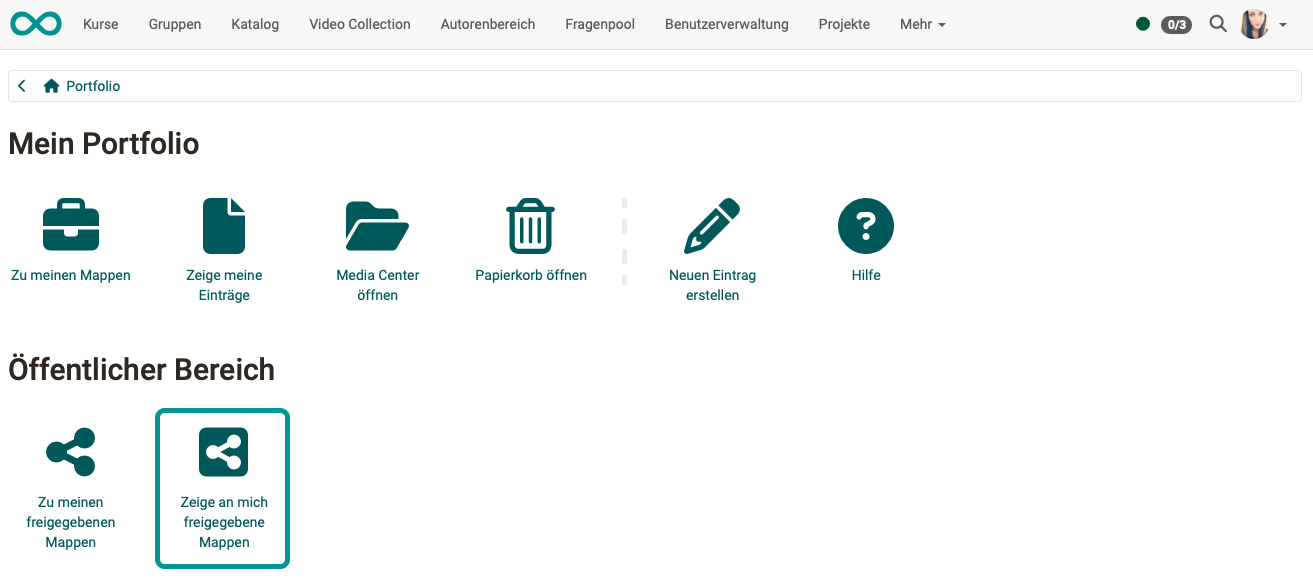
2. Choose "Go to shared items"
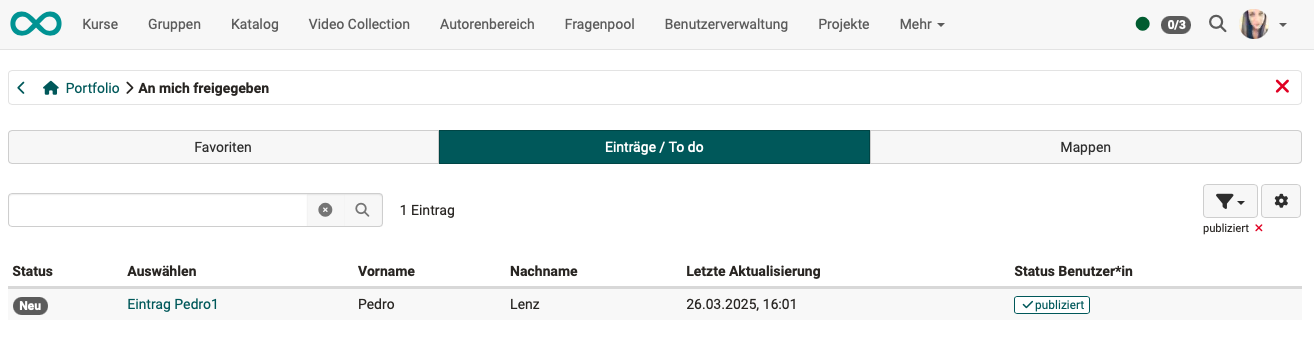
3. Choose entry
In "Entries / To do" open the desired assignment.
4. View the entries in the edited binder
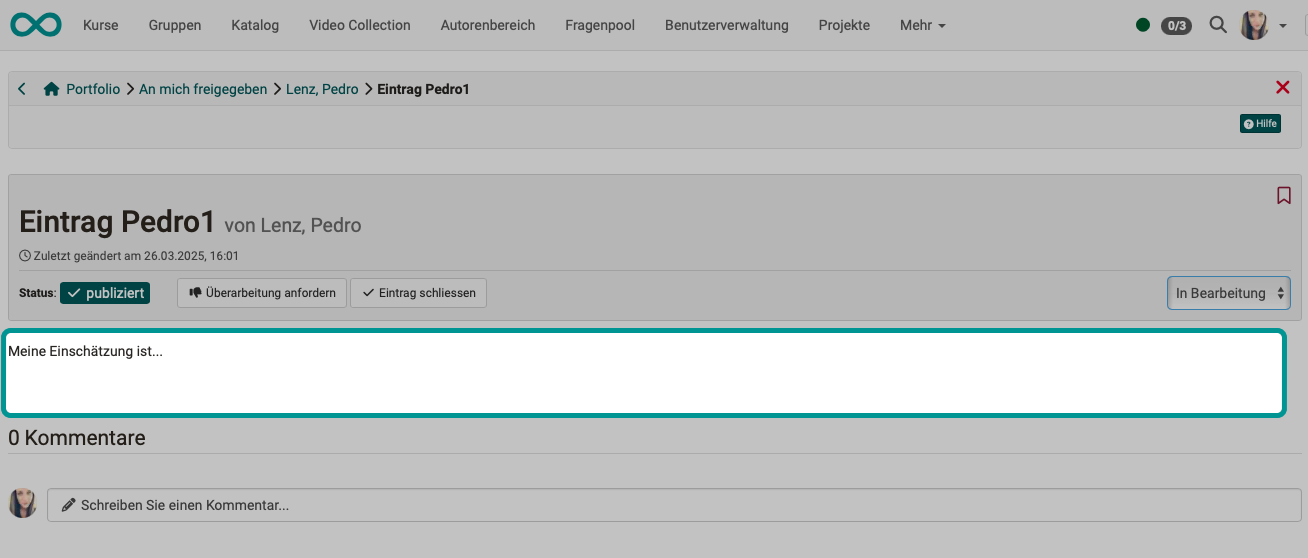
5. Add a comment
Add your comment in the field provided. (For longer portfolio entries, you may need to scroll down to see the comment field.)
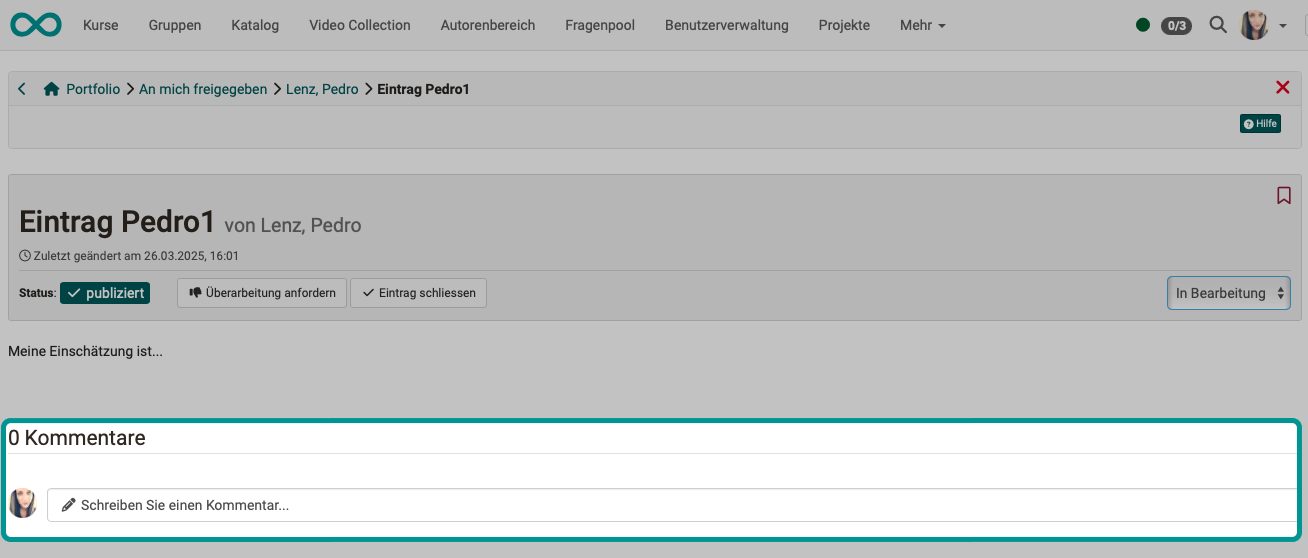
6. Save comment
Any additions to a comment are saved automatically.
A comment that has been submitted stays readable for everyone involved, even if the account of the commenting person is deleted later. The text, the attached files and the replies to it remain unchanged on the entry. The name is replaced by the designation "Unknown user", without a link to a business card. The comments only disappear when the entry, the section, the binder or the course is deleted.
More about deleting an account is available here:
Delete user >
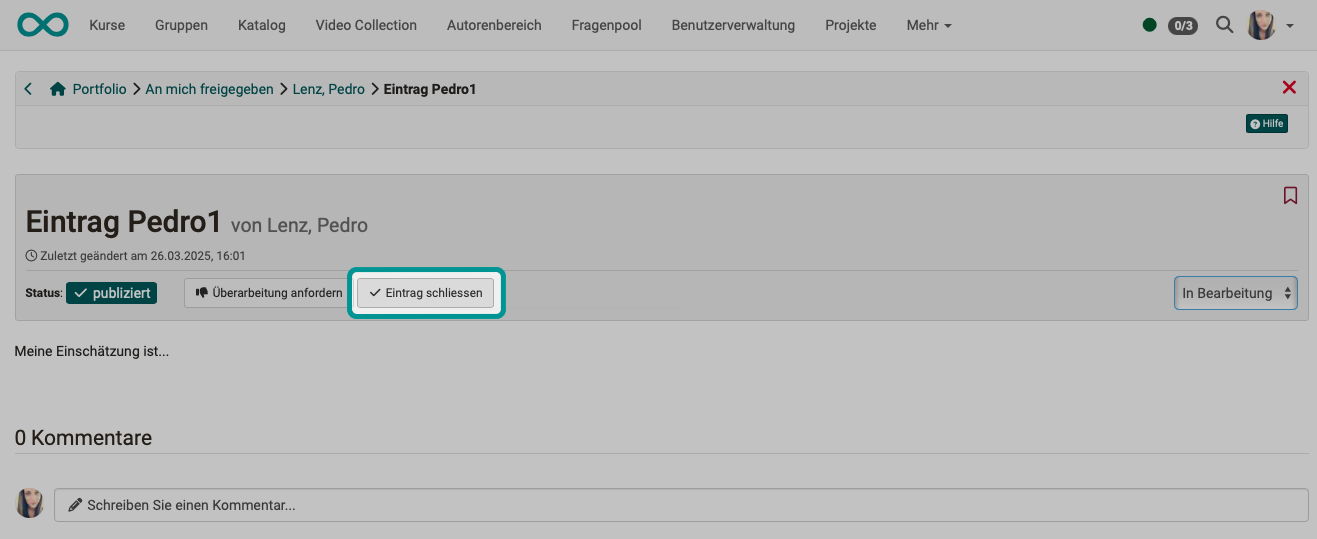
7. Close entry
As a coach, you also have the option to select the "Close entry" button. When coaches close a portfolio entry, it is also displayed as closed to other users who can comment on the entry, and they can no longer comment on it.
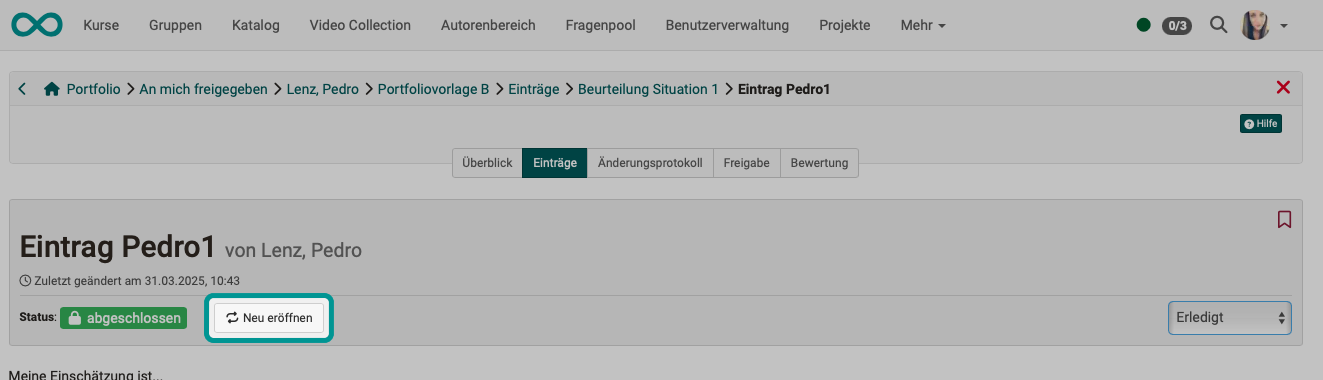
8. Reopen entries
As a coach, you can reopen a closed entry (no longer open for comments) for the addition of comments by clicking the "Reopen" button.
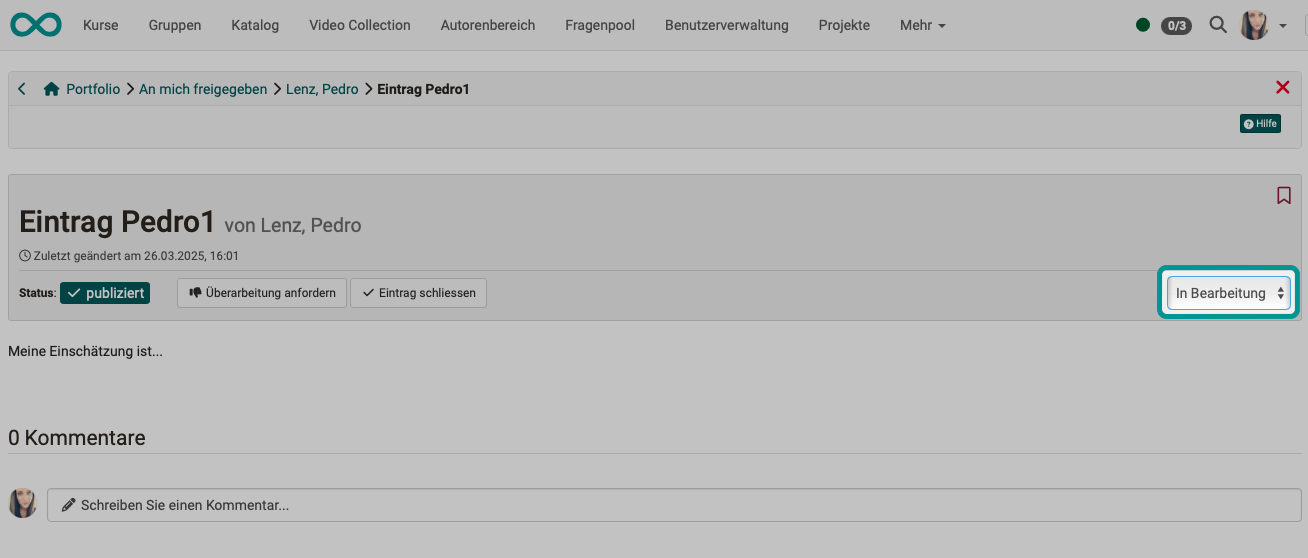
9. Status of the review of an entry
For coaches, there is a selection button on the right-hand side. There, they can set a status for their own assessment. The following statuses can be set for the assessment:
- New (still needs to be reviewed/commented on)
- In progress
- Completed (review/commentary has been made)
The review status, which is set using the selection button on the right-hand side, has nothing to do with the processing status, which is visible on the left-hand side (draft, published, under revision).
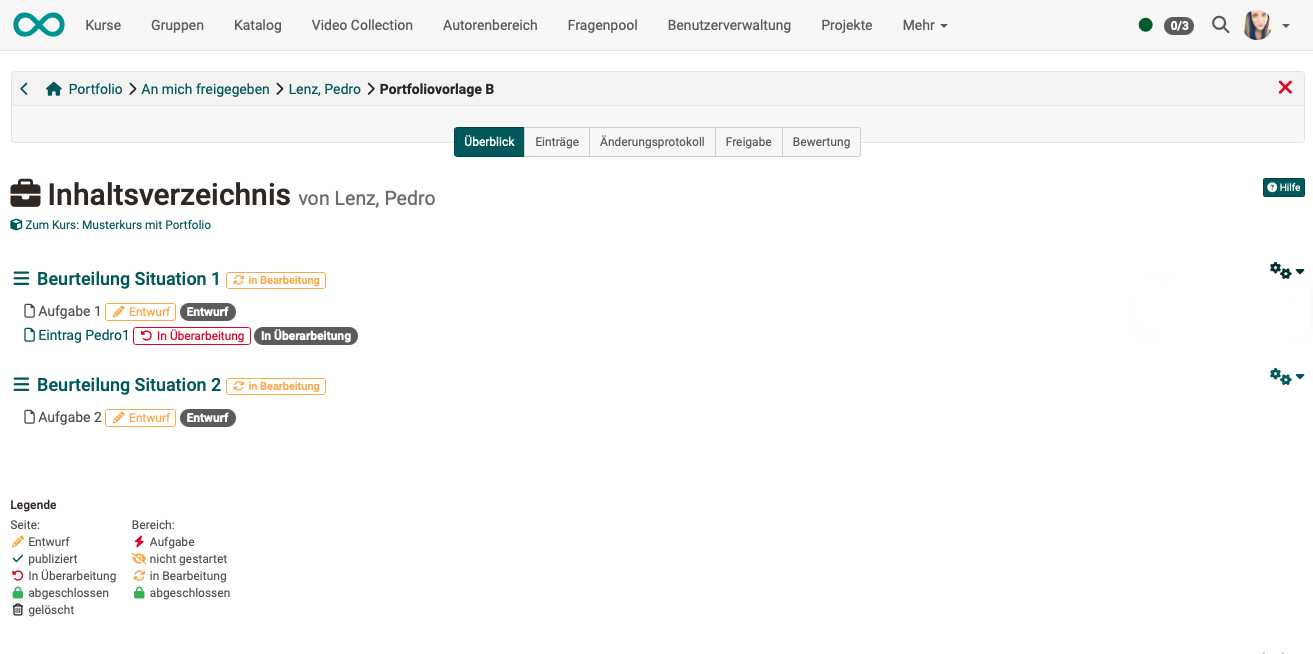
The status of the review/commentary by a coach is displayed in gray in the Overview tab, in addition to the status of processing by the creator.
Rework portfolio task
1. Open portfolio
Open the personal menu and then your portfolio.
See above ^
2. Choose "Go to shared items"
3. Choose entry
Select one of the entries in the "Entries / To do" tab.
See above ^
4. View entry/edit
5. Click on "Request rework"
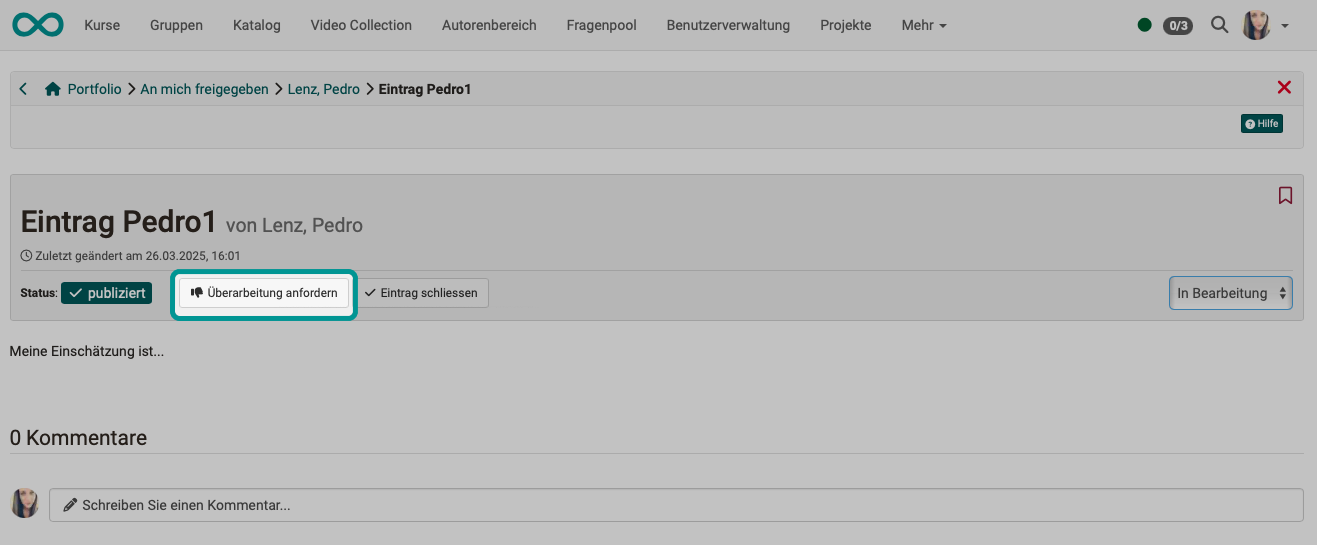
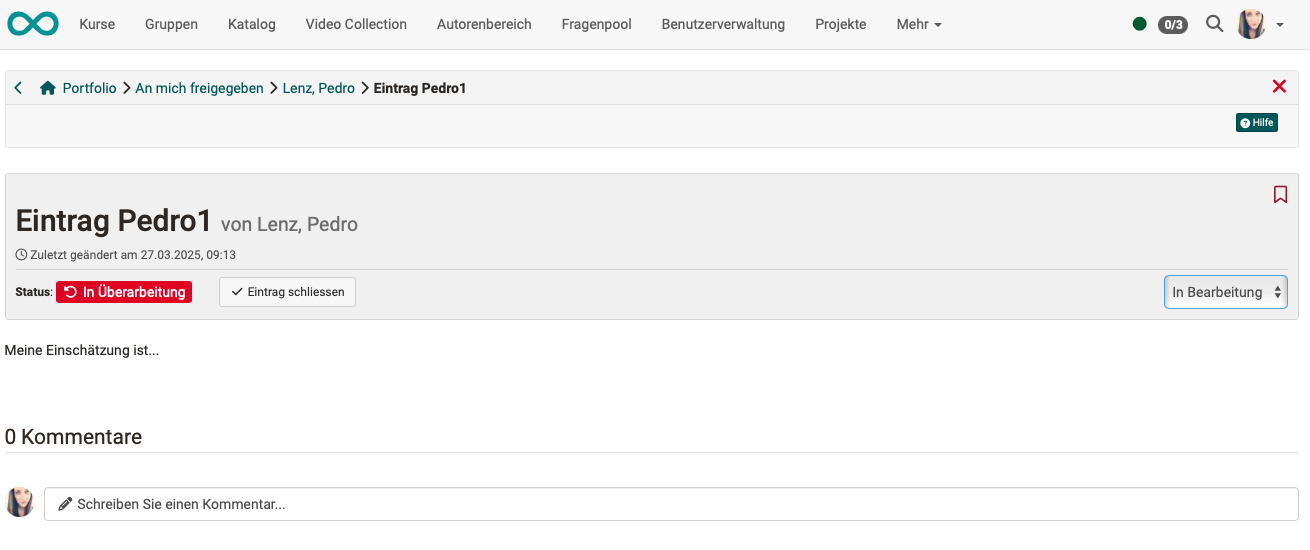
Both the person who posted the comment and the creator will now see the status "In review."
Assess portfolio task
Important
Distinguish between commenting on and reviewing a portfolio entry and the assessment by coaches.
Important
You submit one assessment for each portfolio, not for individual entries in that portfolio.
1. Open portfolio
Open the personal menu and select your portfolio.
See above ^
2. Choose "Go to shared items"
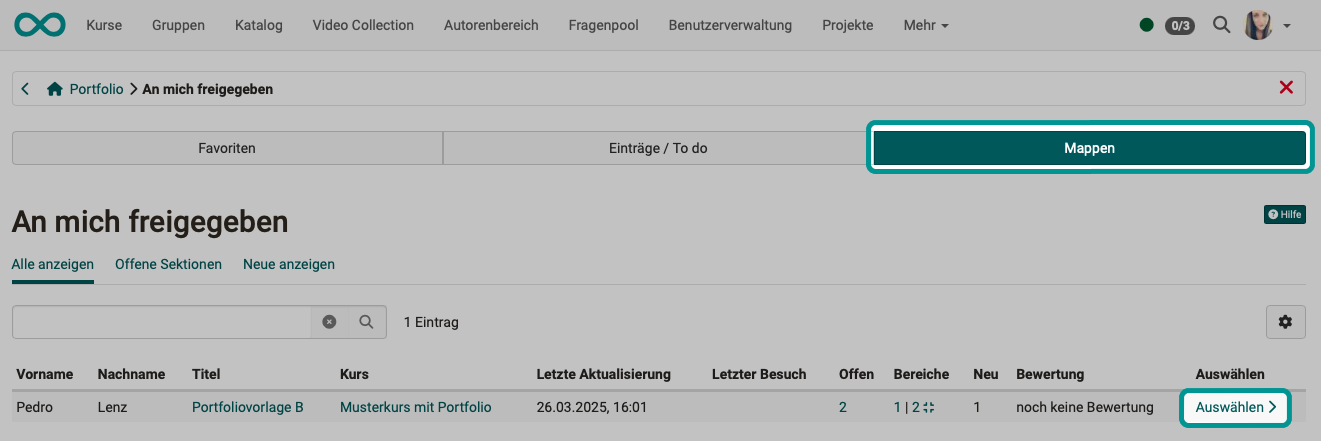
3. Choose binder
Click on the "Binders" tab and select the binder you want to assess.
4. Tab Select "Assessment"
Select the tab "Assessment".
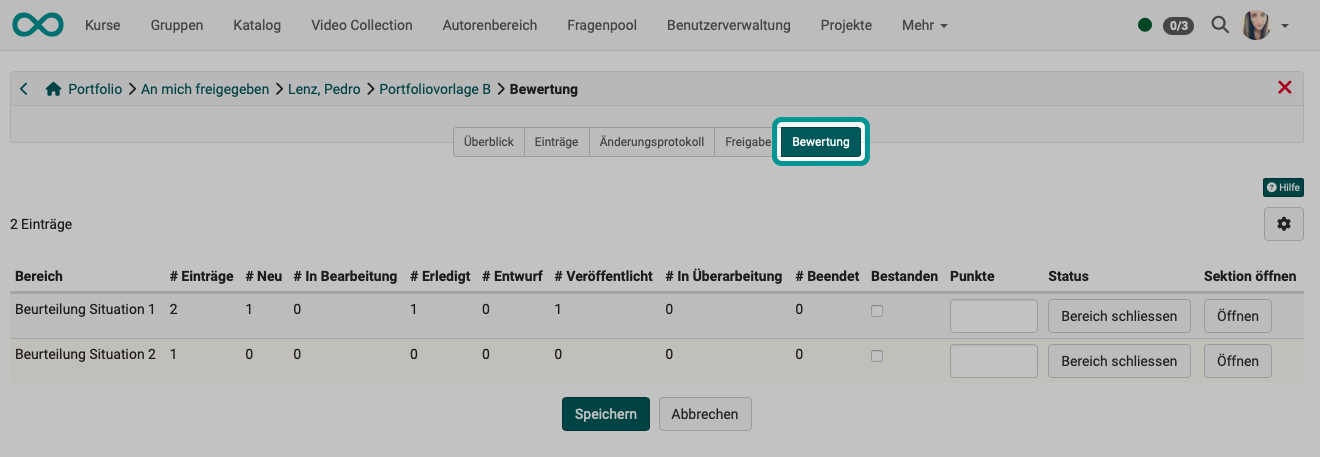
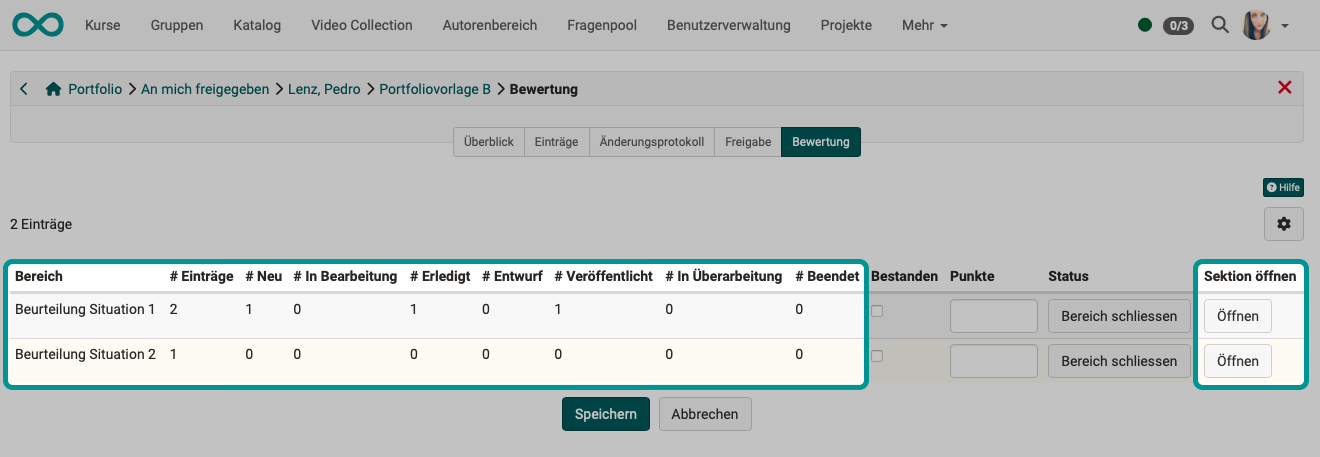
5. Review assessment of areas
Check that all entries in the sections of the binder have been commented on, completed, and published for your assessment.
If necessary, you can show or hide columns using the small gear icon at the top right above the table.
By clicking on "Open" in the "Open section" column, you can jump directly to the "Overview" tab.
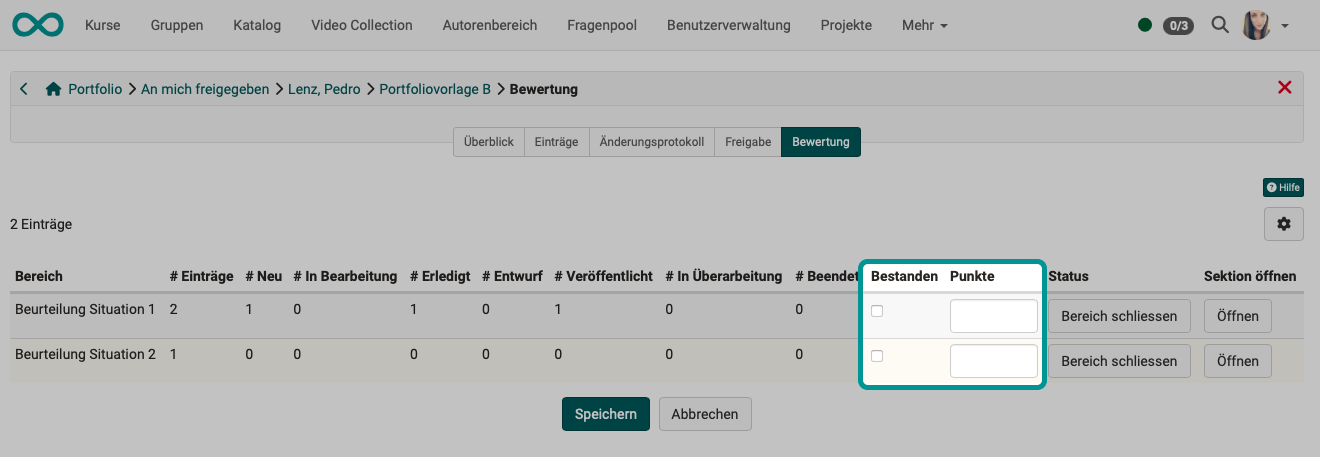
6. Give out points and "Passed"
Enter points for the areas in the selected binder and, if applicable, check the box next to "Passed."
7. Close assessment
Click "Close area" to complete the evaluation. Don't forget to save your changes when you're done.
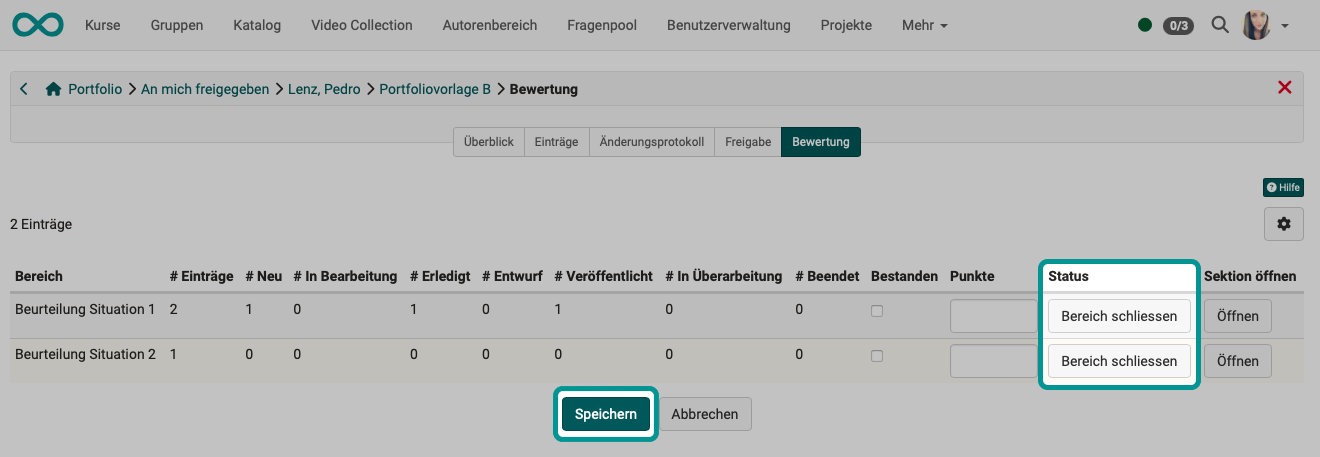
The user is now shown the status "Passed" or "Failed" and the score entered.
Important
If the binder is accessed from a course element, please note that the specific assessment options depend on the settings in the course editor. Depending on the default settings in the "Assessment" tab of the Portfolio assignment course element, points can be awarded and/or "Passed" can be checked or not.
Important
When an area in the assessment is closed, the entire area can no longer be edited by users.
Further information
Delete user >
Portfolio task: collecting and editing >
Course Element "Portfolio Task" >
Portfolio - General Information >
User tools: Portfolio >